Usage
Launch the robot driver
For real hardware:
$ pixi run launch-lan
For simulated hardware:
$ pixi run launch-sim
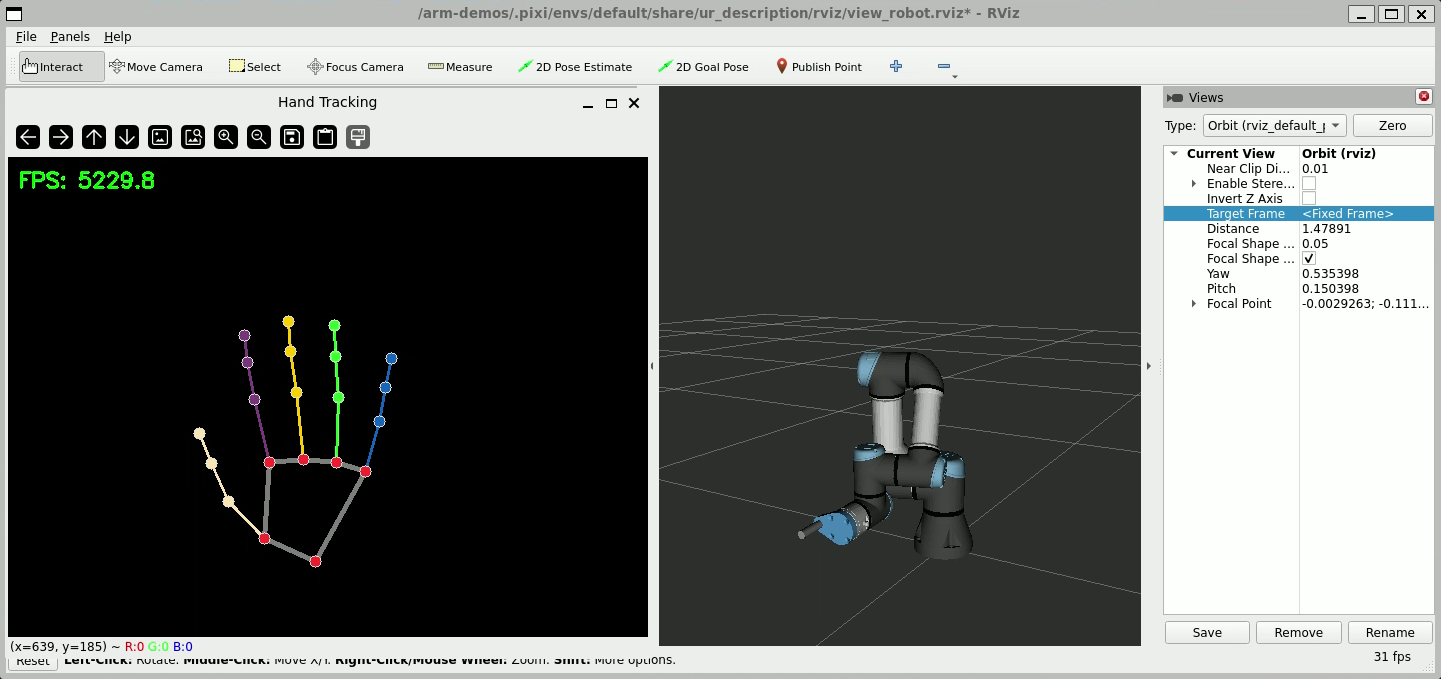
This will launch the robot driver, MoveIt, and an RViz window with the robot model loaded.
Run the arm demo
In a new terminal, run:
$ pixi run arm-demo
This will connect to the camera and then open an OpenCV window with the camera view and hand landmark visualizations.
Note
At this point you should have two terminal sessions open, one running the robot drivers and one running the demo. If you are using WSL, you should have a third terminal session open running the WSL camera connection script.
Congratulations! The robot arm should now follow the hand’s position in the camera frame.
See the src/arm_demo folder for the structure and code that runs the arm demo node, and pixi.toml for the arm-demo launch command.